pointMoA shooting app: features and range tools
Explore pointMoA: an offline ballistic calculator, shooting logbook, target analysis, zeroing assistant, Armory and laser dry-fire training in one app.
After practice, you have a target, a few photos on your phone and the feeling that today went a little better. Better than when? With which firearm, at what distance and using which ammunition? If the result was worse, did something change in your setup, or was it simply a difficult day?
pointMoA brings an offline ballistic calculator, a shooting logbook and target analysis together in one app. It helps you prepare for practice, record what happened and return to the measurements when you want to compare results. The Armory, zeroing assistant and laser dry-fire tools build on the same history.
Yes, this is an article about our own app. The aim is to explain what it actually does, so you can decide which features belong in your shooting routine.
This guide covers version 2.509.0, prepared for an upcoming update. It includes the new calculator tools. If your installed version does not show every screen described here yet, they will arrive with the update.
What can the pointMoA app do?
| Area | What it helps you do |
|---|---|
| Home and Calendar | Review practice, plan visits, check reminders and start a session |
| Shooting logbook | Record sessions, competitions, targets, equipment, ammunition and conditions |
| Target analysis | Measure group size, scores, group centre, P50/P90 and hit density |
| Progress | Follow trends, goals and records; compare firearms, ammunition and lots |
| Armory | Keep firearm cards, optics, ammunition stock, round counts and service history |
| Ballistic calculator | Calculate trajectories and corrections, manage profiles and use advanced tools |
| Shooting screen | Read corrections on a clear range screen, select targets and use night mode |
| Zeroing | Set up or check optics, calculate turret clicks and keep the results |
| Dry fire | Practise with a laser, run drills and measure timing and hold stability |
| Ranges and Tools | Keep a personal range notebook, convert units and estimate distance from a reticle |
| Reports and printouts | Export PDF targets, correction tables, result cards and season summaries |
| Settings and backup | Choose languages, themes and units, and move recorded data between devices |
The modules share information. A firearm in the Armory can have a calculator profile, appear in practice sessions and contribute to statistics. You do not need a separate history in every tool.
Home and Calendar: prepare for your next range visit
Home shows shot, practice and competition counts, average group size, and your firearm and ammunition totals. You can review the last 30 days or 12 months. Ammunition stock still represents what you have today, rather than a historical activity count.
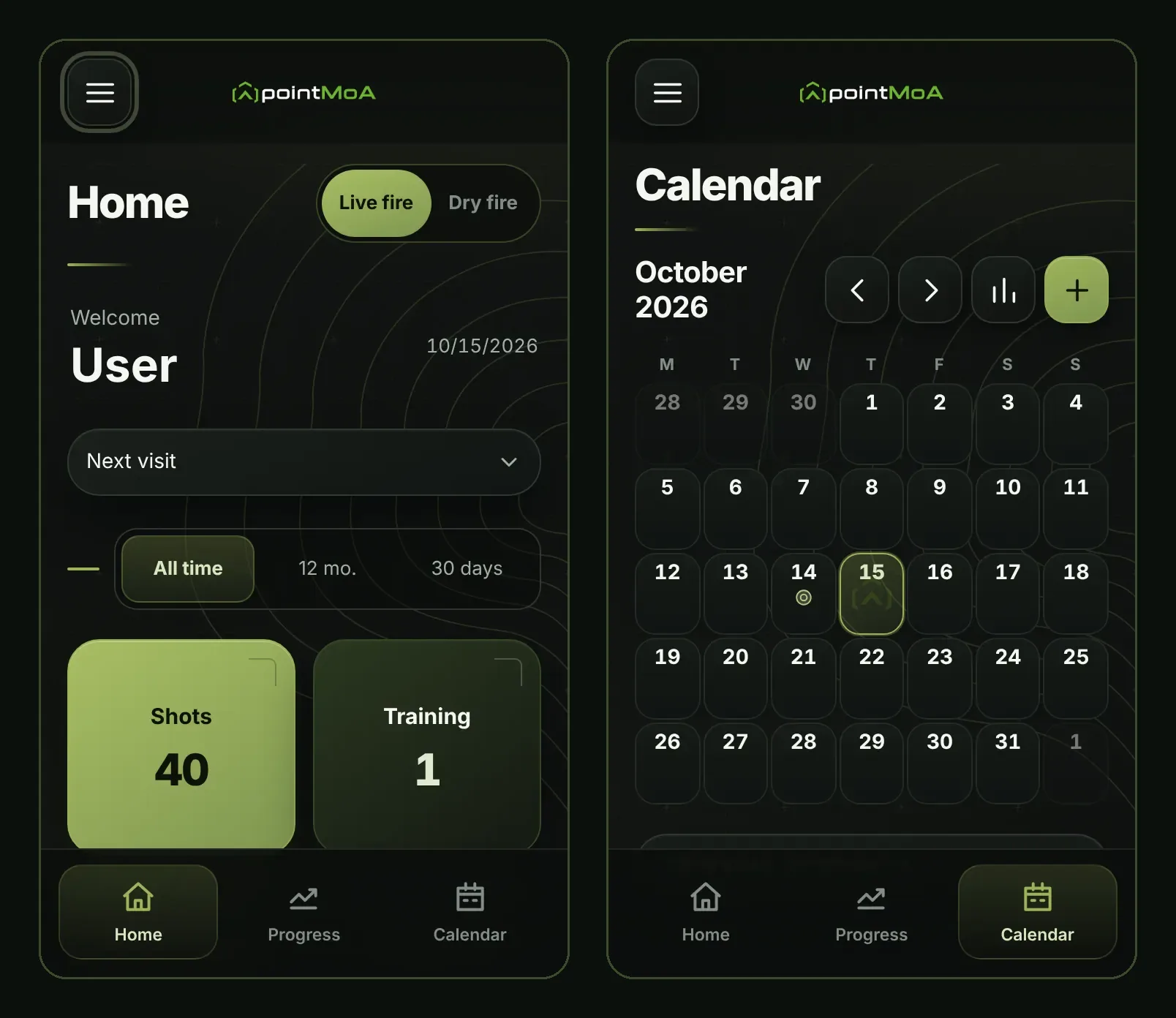
Next visit brings together upcoming sessions and competitions, overdue maintenance, training goals and longer breaks from practice. You can start a session, use today's plan or create a competition from this area.
When you are getting started, the app suggests the next missing step: adding a firearm, ammunition, a profile or your first session with a target. That gives you a way into the app without exploring every menu first.
The Calendar displays planned and completed sessions, competitions, zeroing, maintenance and purchases with recorded dates. Pick a day to plan a visit; the monthly summary helps you review practice frequency and ammunition use.
Shooting logbook: keep the context behind each target
A session records the date, range, firearm, ammunition, shot count, conditions and notes. You can attach several targets and photos to one visit, and record malfunctions or equipment problems.
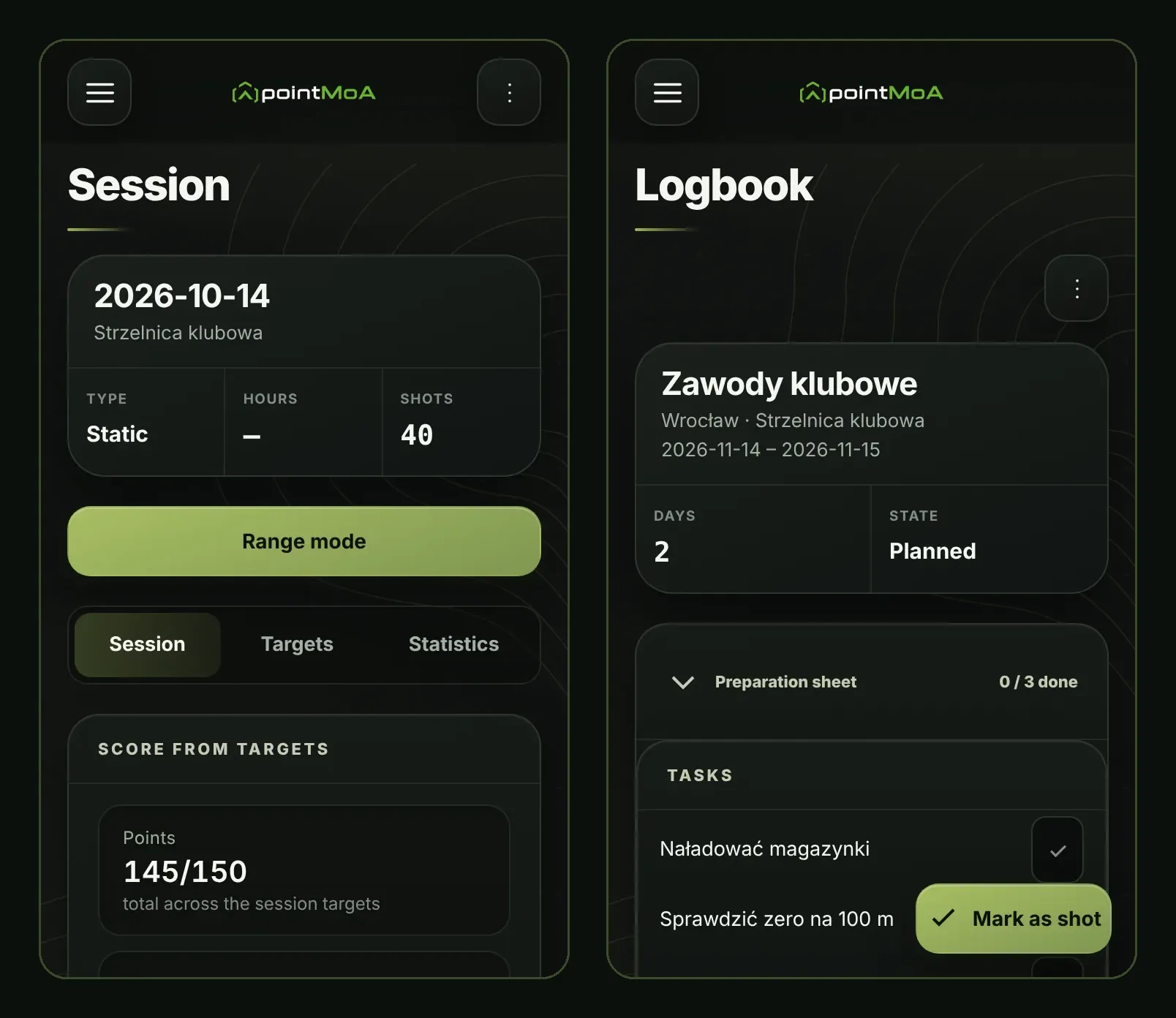
Range mode lets you update the session during practice: increase the shot count, add targets and keep notes. You can also plan a session beforehand and prepare a checklist before leaving home.
The logbook has separate tabs for sessions, competitions and dry-fire practice. Competitions have disciplines, results, targets, photos and preparation checklists. Their statistics and reports stay with the event.
For a measurement without a complete visit, there are Quick targets. Analyse a target first and move it into a completed session later. It contributes to aggregate statistics after it has been assigned to a visit.
Target analysis from a photo: groups, scores and impact position
In pointMoA, you can work with a target photo or an interactive target view. Mark the impacts to obtain measurements including:
- Extreme spread: the distance between the two furthest impacts.
- Mean radius: the average distance of impacts from the group centre.
- Mean point of impact and its offset from your point of aim.
- P50 and P90, describing impact distribution around the group centre.
- Scores and X counts, where supported by the chosen target.
- A heatmap showing hit density.
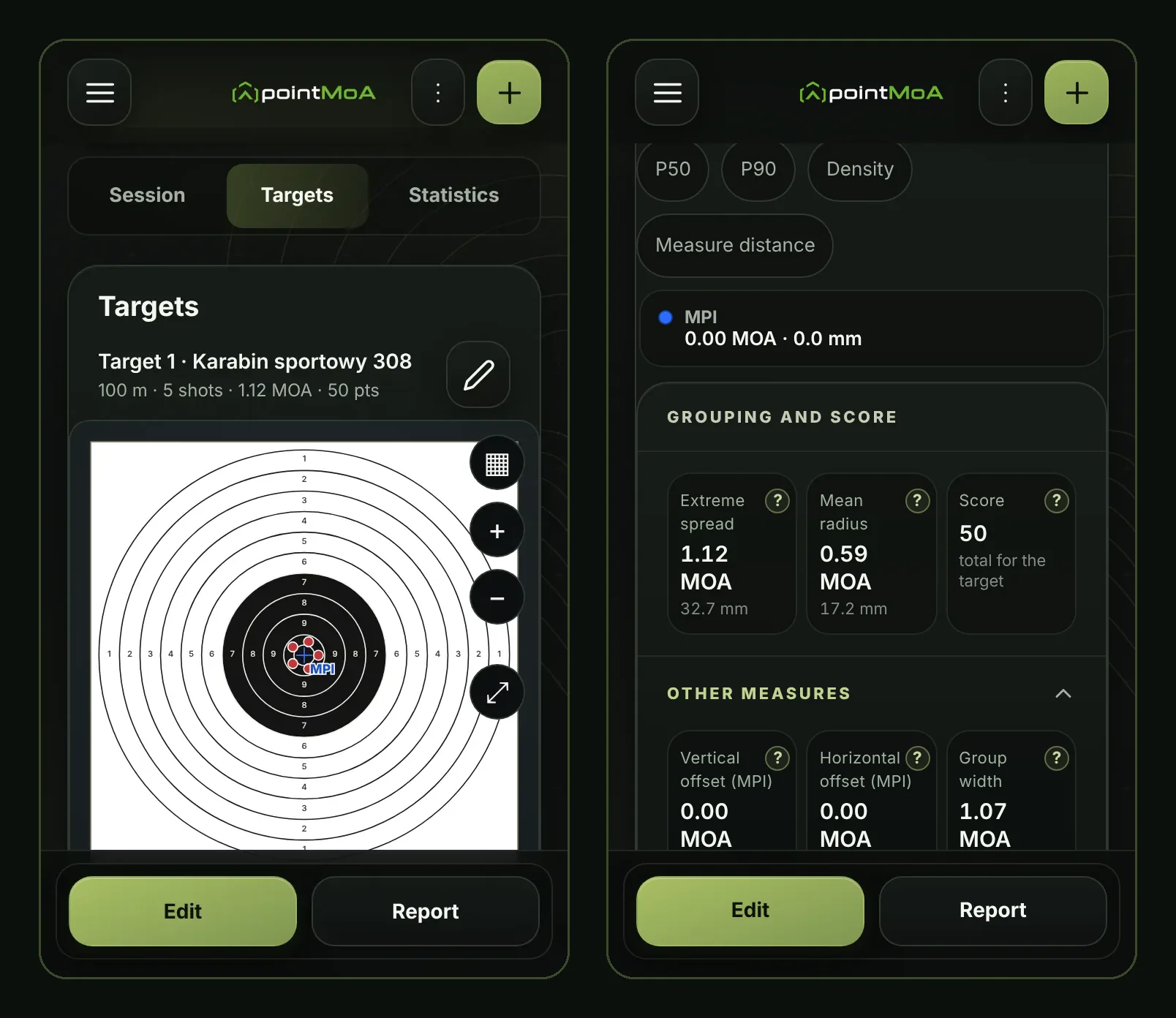
Results are available in linear and angular units. The target ruler measures between impacts, the group centre and reference points. You can choose which overlays appear on the target drawing.
Detect bullet holes proposes impacts from a photo. You accept, correct or reject the suggestions, keeping control of the points used for measurement. The calibration panel helps assess whether the photo is suitable for measuring.
A tight group away from the target centre can mean good grouping with a shifted zero. That is why the app treats group size and group-centre position separately. The shot-group measurement guide explains the measurements in more detail.
Progress: see whether practice is making a difference
One target describes one string. Progress lets you review many visits, filtered by time, firearm, ammunition, distance, target and practice mode.
Overview contains trends, counts and charts across targets and sessions. Follow changes in grouping, scores and group position rather than judging a month from its best photograph.
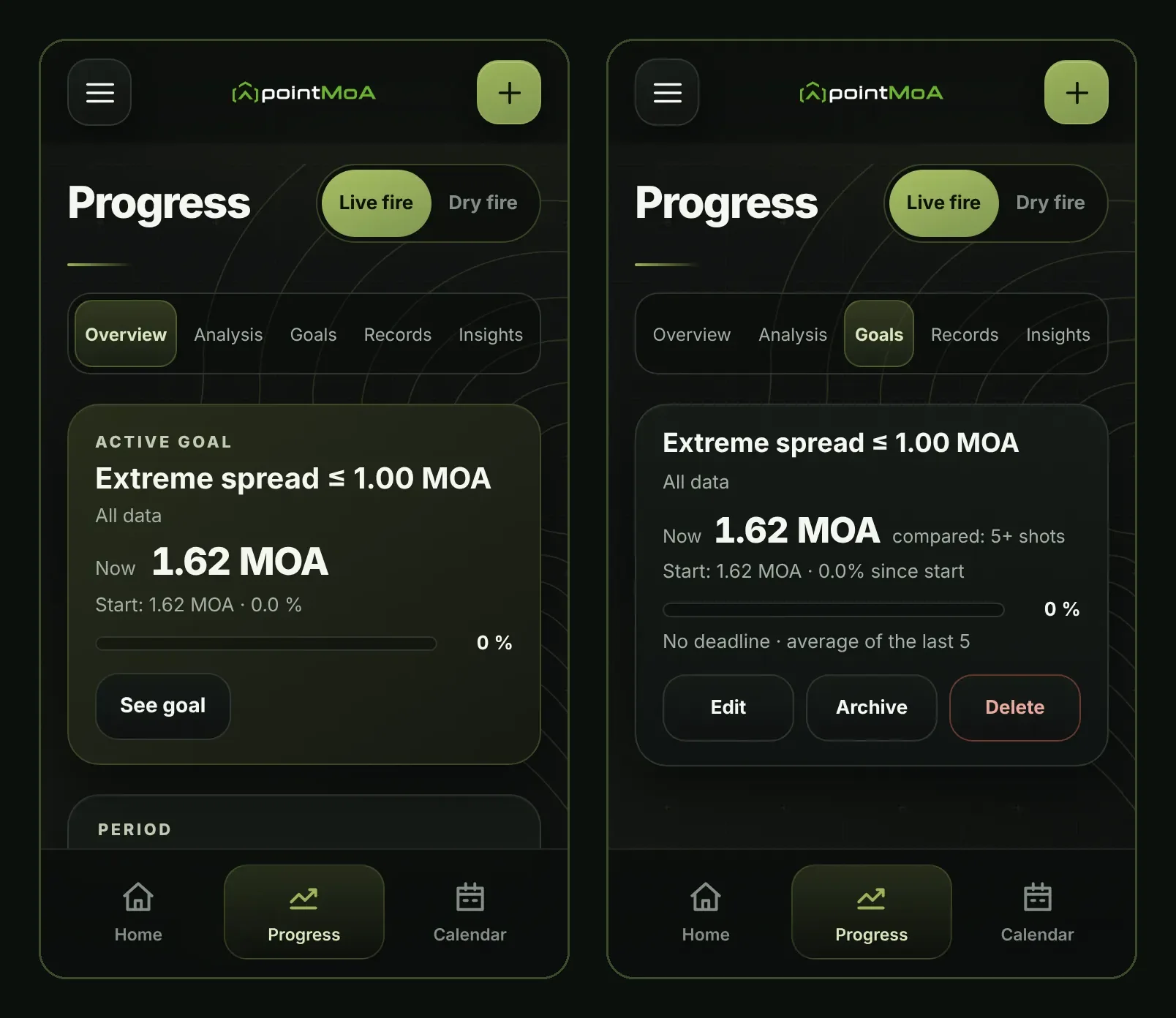
Analysis compares hit distribution, firearm–ammunition combinations and individual lots. It includes P50/P90, heatmaps and statistics export to PDF. Distance is part of the comparison context: results from 25 m and 100 m should not become one unexplained average.
In Goals, set what you want to improve, the target value, scope and deadline. Records selects the best results from your saved data, including group size, scores, X counts and other measurements within the relevant setup and distance.
Insights addresses practical questions: which setup performs better, whether ammunition lots differ and whether results change under pressure. When the sample is too small, the app tells you that more targets are needed. Calculator vs range also compares measured group centres with the table of the assigned calculator profile.
Dry fire has its own version of these statistics. Laser results do not increase live-ammunition counters or replace grouping measurements from live-fire practice.
Armory: firearms, ammunition and maintenance
A firearm card contains the details of your firearm, optics, barrel, magazines, modifications, purchase and notes. You can start with a model from the database and adjust the information for your own configuration. Photos and a calculator profile can be attached to the card.
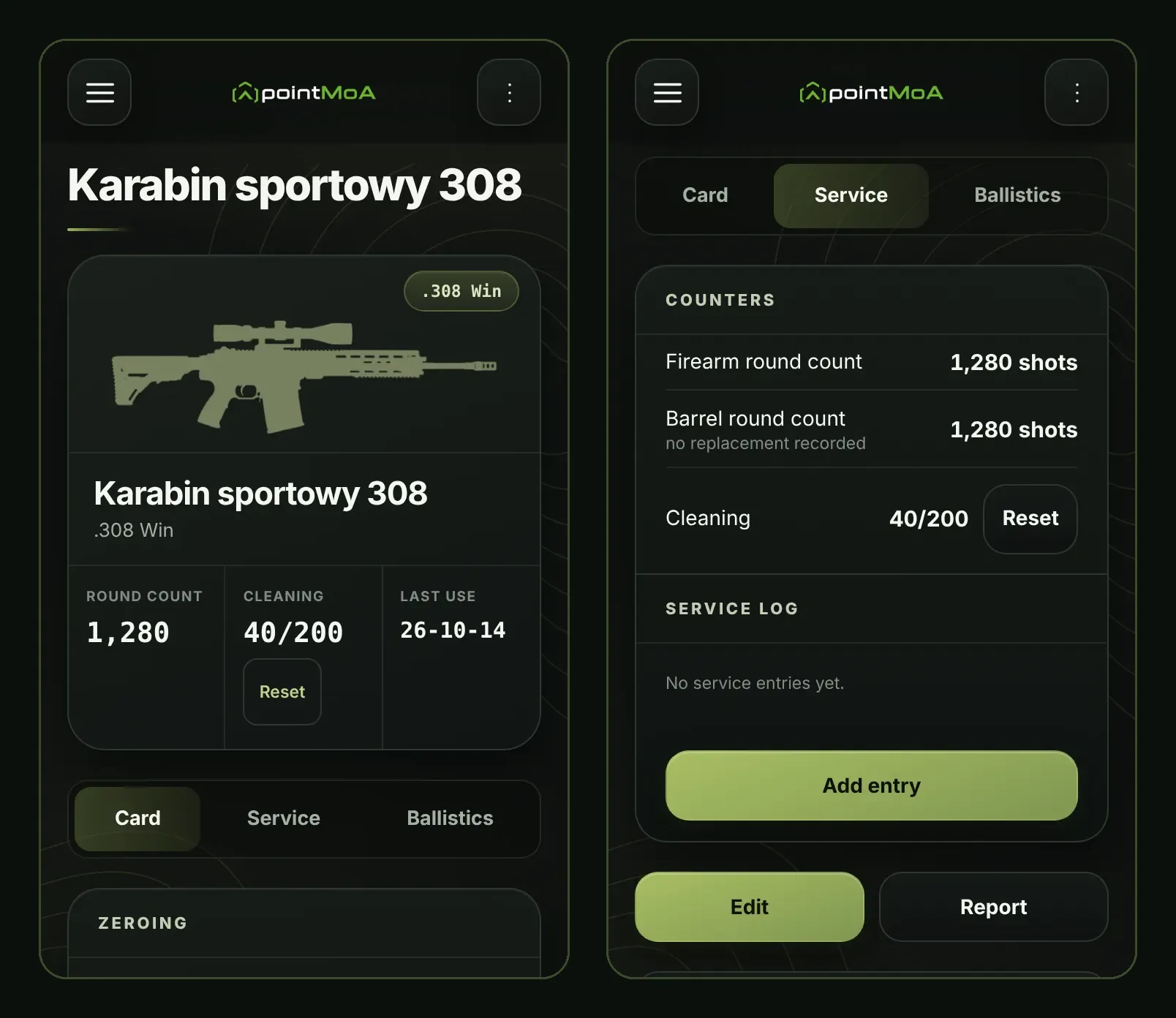
Usage history shows round counts and recent visits. Rounds since cleaning and time-based reminders help you track maintenance. The Service log records cleaning, maintenance, component replacement, inspection or repair, with dates, round counts, costs and notes.
After a component replacement, its new counter starts from zero while its previous usage remains in history. Barrel usage can be tracked separately. The card also keeps zeroing history and reminders to check the zero. You can archive a firearm while retaining its history.
In Ammunition, a product and a purchase are different records. The product describes the load; a purchase identifies a particular lot, quantity and price. The app uses those records to track stock, cost per shot and consumption. A manual stock correction can include a note explaining the discrepancy.
That detail is useful when comparing groups too. “.22 LR” says very little about the ammunition behind a result. Product and lot records help you return to the load you actually tested.
Offline ballistic calculator: from inputs to corrections
The calculator uses firearm, optic, bullet, zeroing and atmospheric data. It supports G1 and G7 drag models, wind and shot angle. Enter the information manually or load it from the Armory and a saved profile.
Muzzle velocity can come from catalogue data, your own measurement or a barrel-length estimate when the necessary reference data is available. Results appear as a table, a trajectory chart and a point-of-impact preview on a target.
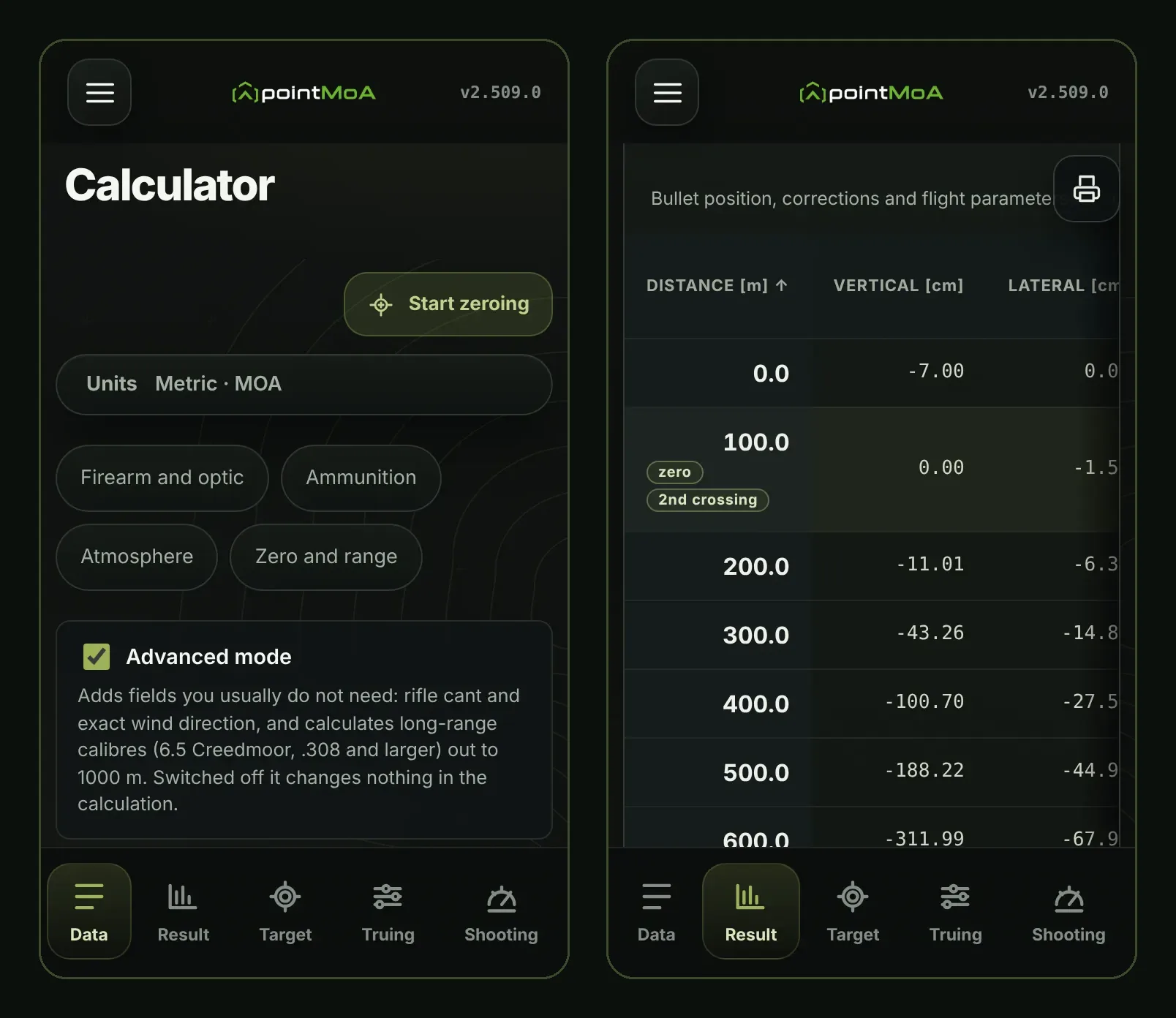
Read corrections in MOA, MRAD and turret clicks. The table also includes information such as velocity, energy and time of flight. Wind value expresses a correction per unit of crosswind. You can take the table to the range, including through PDF or CSV export.
The target view shows point of aim and predicted point of impact. Hit zone helps assess the distance interval for a chosen zone and compare zero settings. An energy threshold marks table rows below a value you enter.
Save profiles under your own names and assign them to firearms. Ammunition comparison calculates a second saved setup in the same conditions as the current one, preventing weather from the day it was saved from masquerading as an ammunition difference. Profile inputs can be shared as text or a QR code.
The calculator also supports airgun setups. Appropriate drag data still matters; functions based on a rifle-bullet model do not automatically promise equivalent support for diabolo pellets.
Advanced mode: more measurements and more tools
Advanced mode provides additional ways to prepare and check a ballistic solution:
- Firearm cant, stability and spin drift, with the required bullet and twist data.
- Coriolis, using latitude and, with an azimuth, its vertical component too.
- Aerodynamic jump from crosswind near the muzzle.
- BC bands and a custom Cd/Mach drag curve from entered data or CSV.
- An uncertainty budget and sensitivity to changes in velocity, BC and wind.
- Hit probability for a chosen target size, grouping and input uncertainties.
- Ballistic calibration, or truing, to fit V0 or BC to target measurements, including multiple distances.
- A tall-target test to measure the actual click value of an optic.
Calibration can use a measurement from a saved logbook target. The app displays fitting sensitivity and helps choose a measurement distance. Apply the result to calculate a new table from the adjusted inputs.
For supported long-range calibres, advanced mode allows tables and ballistic calibration out to 1000 m. Basic mode and other setups have their applicable limit, typically 600 m. The results mark where the bullet drops below the speed of sound.
Chronograph data, ammunition temperature and phone sensors
Chronograph series accepts manually entered velocities or a CSV file, for example from Garmin Xero or LabRadar. It calculates the mean, SD, velocity extreme spread and other measurements. Use the mean as V0 or SD as velocity uncertainty. This is data import, rather than a Bluetooth connection to a chronograph.
With several velocity measurements at different ammunition temperatures, you can build your own V0 versus temperature relationship. The app separates air temperature from ammunition temperature, which matters when cartridges warm up in sunlight.
Measure with phone uses a sensor for shot angle and cant, and a compass for azimuth. Availability and measurement quality depend on the phone; values can also be entered manually.
Wind zones describe different conditions along the trajectory. Not every supporting view uses several zones: the Shooting screen and the dope card use a single-wind model. With a custom drag curve, the calculator requires data covering the working interval rather than inventing its continuation beyond that range.
These tools are most useful when you have the necessary measurements. Hit probability is an estimate within the chosen model. It does not automatically account for an incorrect zero or a misread wind direction. Check adjusted inputs on a target.
Shooting screen: clear corrections at the range
The Shooting tab brings distance, wind and corrections into large figures, with click counts and adjustment directions. Change distance, wind speed and clock direction quickly, and read the crosswind and headwind or tailwind components. Since version 2.508.0 it also shows the longitudinal wind component.
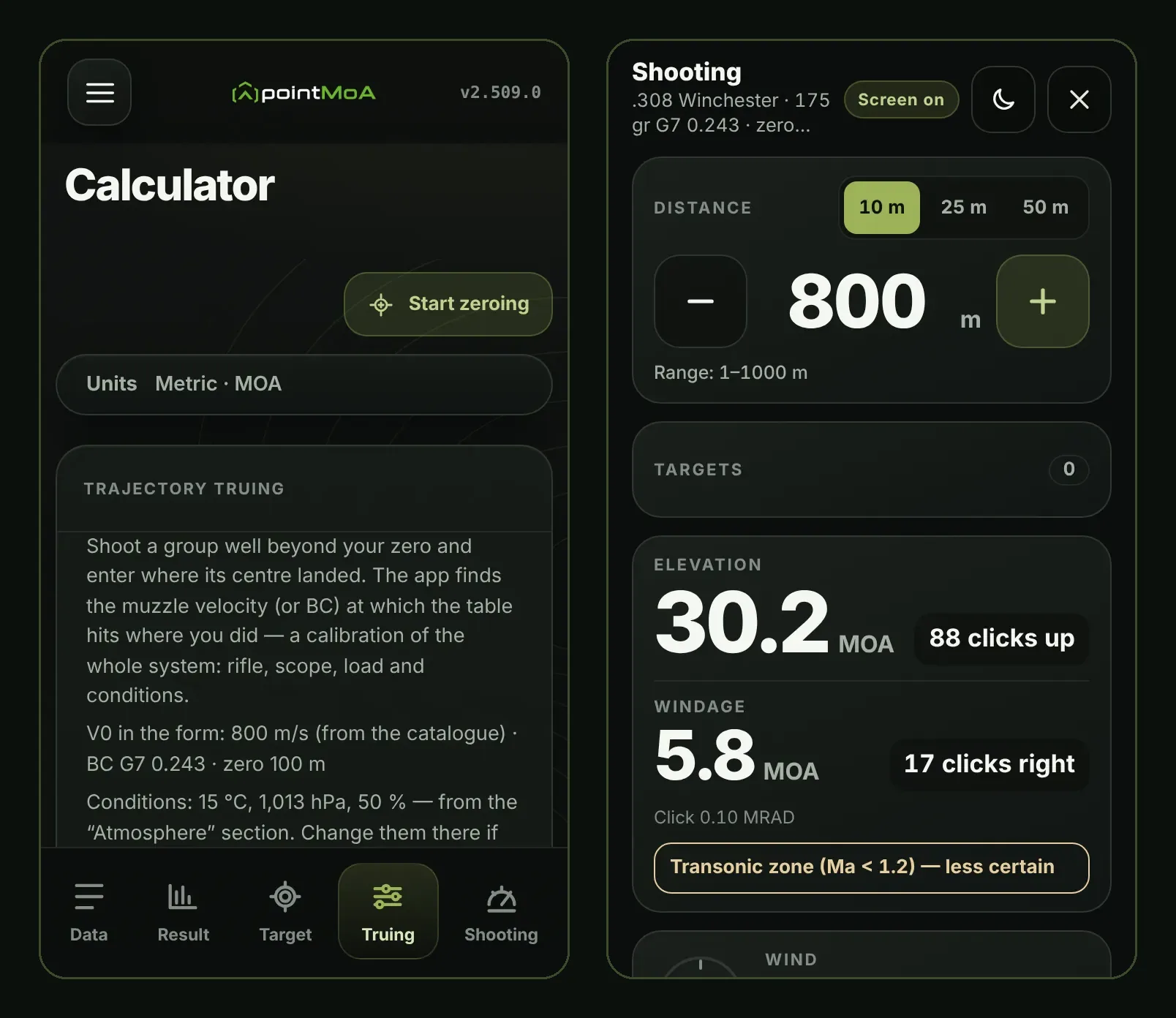
Time of flight, velocity, Mach, energy and correction intervals for a wind change are also available. Night mode uses red on black, while full screen keeps the figures prominent. The screen stays awake while the Shooting tab is in use.
Prepare a list of fixed targets with names, distances and angles, including distances from a saved range. Selecting a target calculates a solution for its inputs. A separate tool provides moving-target lead from the speed and direction you enter.
For paper reference, there are a position card and a dope card with distances, clicks and wind value. The dope-card PDF is designed for cutting cards from a printed sheet.
Zeroing assistant: from the first group to a zero check
Zeroing takes you through firearm, optic, distance and target selection, an initial group, measurement, correction and a verification group. It displays group-centre offset and the required clicks with adjustment directions.
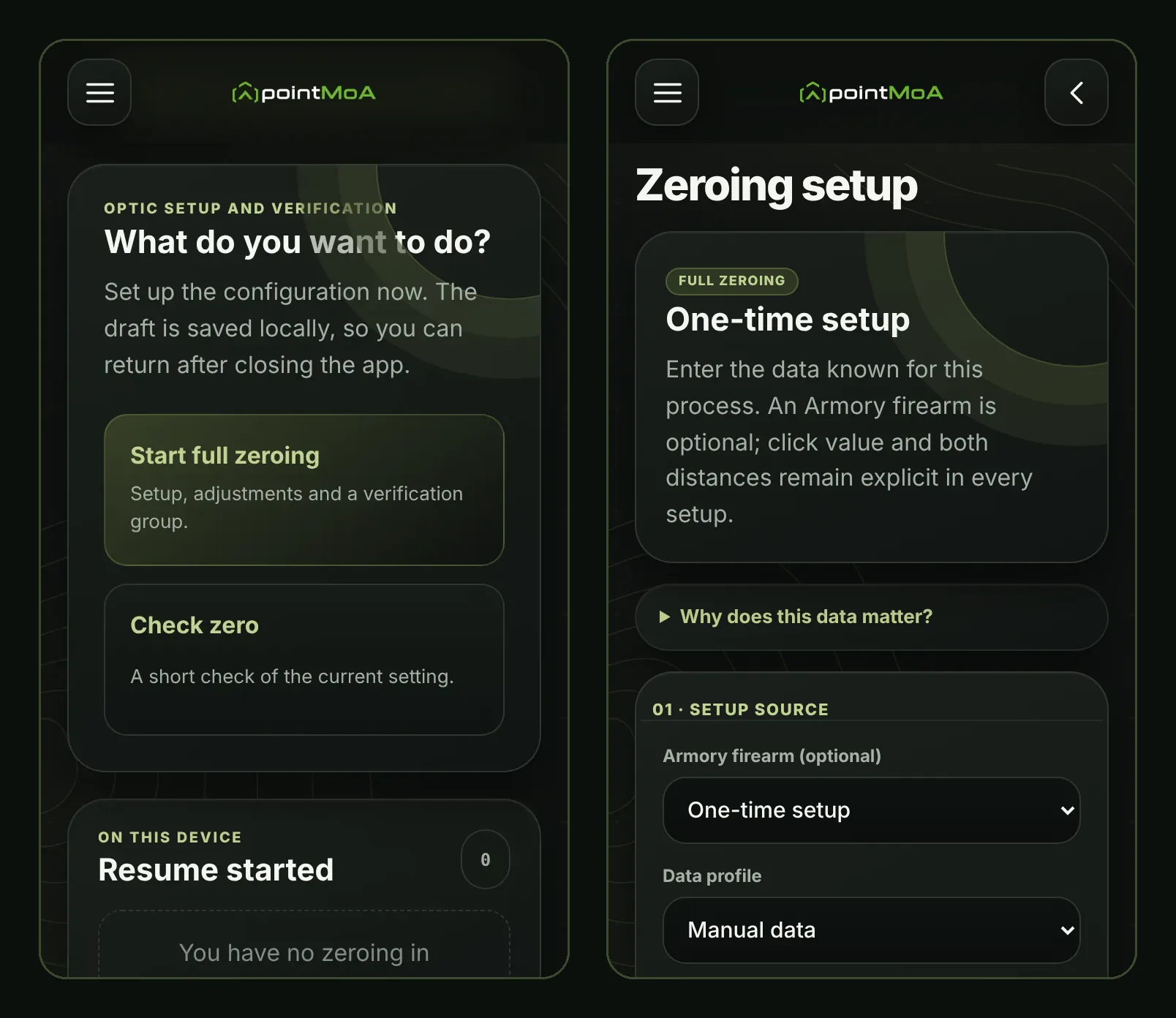
Print a PDF target with a scale-check line. A target photo can be corrected using four perspective markers, automatically or with manual adjustment. Impacts can also be marked directly on the interactive target.
A completed process goes into the history and firearm card, with a PDF report and group photos. Check zero provides a shorter check of an existing setting without starting the whole process again.
Laser pre-zeroing in dry fire is a separate feature. Confirm the actual zero through live-fire groups.
Laser dry-fire training: use your phone for measurement
With a suitable laser, a printed target and a phone positioned near it, you can record hits during practice at home. The camera calibrates its view from the target markers, and the app records detected pulses as hits.
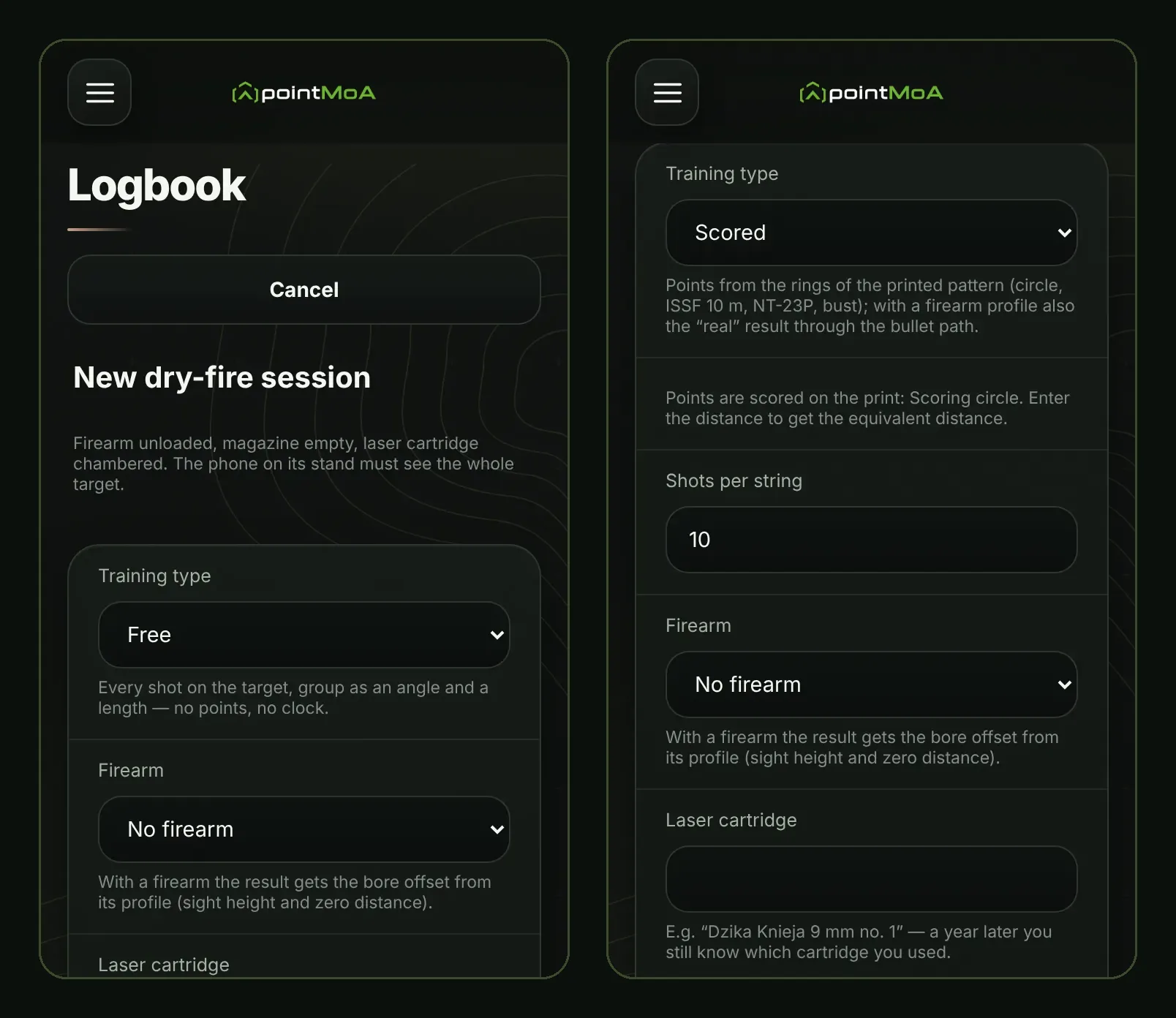
Choose free practice, scored shooting, timed practice, 14 built-in drills, hold training, pre-zeroing or the Polish shooting-licence practical-test practice mode. The catalogue includes Dot Torture, Bill Drill, IDPA 5×5, VTAC 1–5, El Presidente and reload exercises. Licence practice is a training aid, rather than an official PZSS examination.
Depending on the exercise, the app records scores, time to first hit, intervals between pulses, transitions and hit factor. Reload timing uses the interval between impacts on either side of the reload. The phone observes pulses; it does not identify the magazine movement itself.
Hold training uses a continuous laser to assess spot movement, drift, time in zone and stabilisation after a signal, including sequences of shooting positions. Pre-zeroing with an assigned firearm profile helps prepare a setting before visiting the range.
Laser sessions have their own targets, statistics, goals, records and PDF reports. Follow this practice over time while keeping its history separate. It does not measure recoil or replace live-fire practice. Use an unloaded firearm, keep live ammunition separate and follow the laser manufacturer's instructions.
The laser dry-fire guide explains how to prepare the setup.
Ranges and conversions: useful details close at hand
Ranges is your personal notebook of places you shoot: addresses, arrival instructions, map links, contacts, opening hours, distances, lane counts, prices, restrictions and a photo. Add ratings, advantages, drawbacks, club membership and a dues deadline. Range cards can be linked to sessions and competitions.
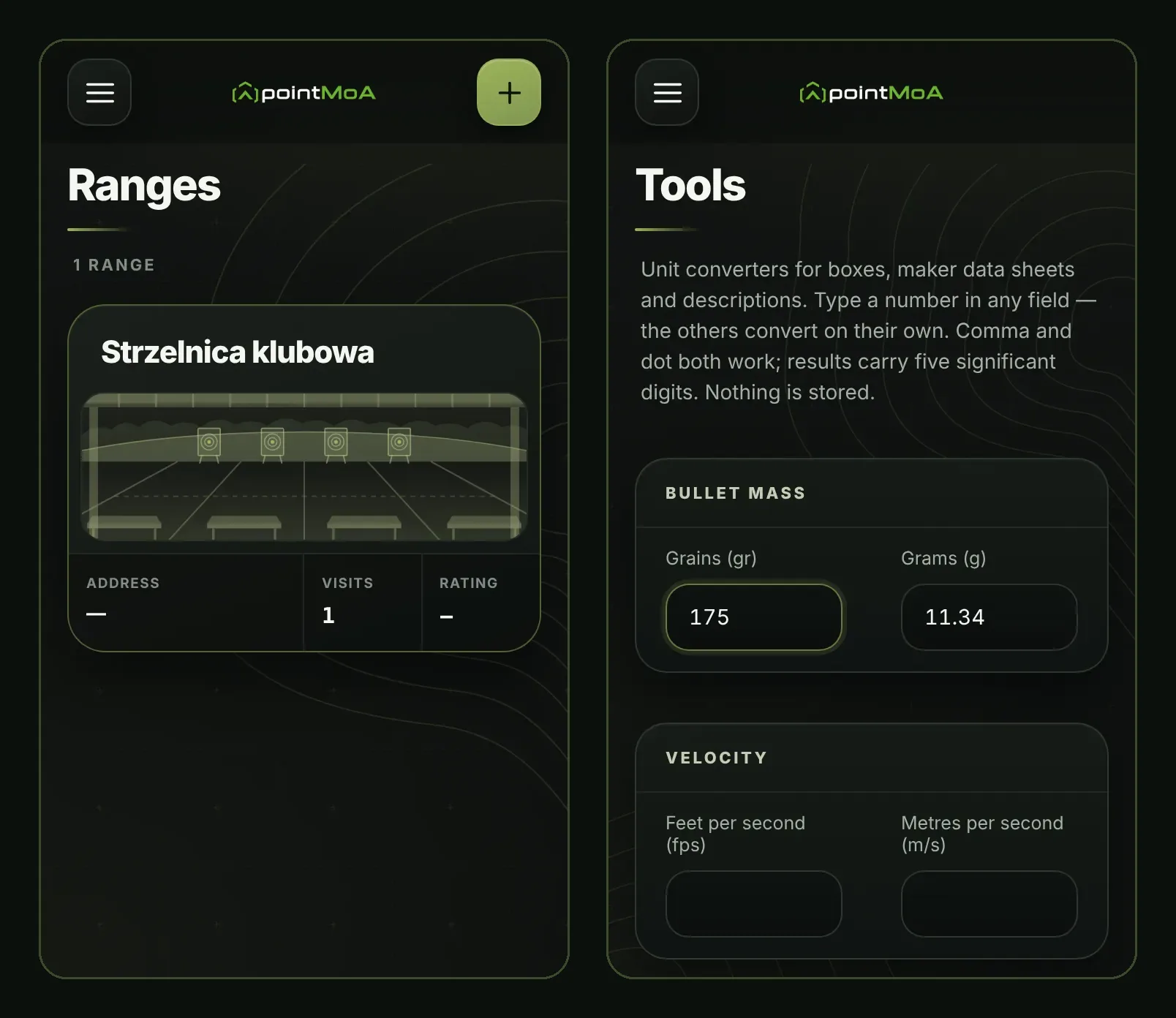
You enter those details yourself. The app does not present opening hours or prices as information checked live online.
Tools converts bullet weight, velocity, energy, length, distance, temperature, pressure and angular corrections. Quickly convert grains to grams, fps to m/s or MOA to MRAD, for example.
Reticle ranging estimates distance from a known target dimension and its angular size in a scope. It also accounts for SFP reticles using calibration and current magnification. The calculator's target view includes generic mil-dot, MOA, MRAD and MRAD tree reticles with a hold point.
Reports, result cards and PDF targets
Create a shareable image from a session or competition. Choose the layout, elements and background; target photos can include impact and measurement overlays. There is also a firearm report with labels positioned on its photo, and a graphic summary of a season or year.
For documentation, use PDF reports for sessions, statistics, dry fire and zeroing, as well as calculator results and correction cards.
The app generates printable targets, including pointMoA sheets and ISSF, TS-2 and NRA targets at 1:1 scale. Available paper sizes depend on the target's dimensions. Markers and a scale-check line help preserve scale and support later photo measurements.
Keep an exported card for yourself or share it using your phone's usual tools. Saving a session does not automatically publish it anywhere.
Offline operation, five languages and your own backup
Calculations, practice records and analysis work on the device without creating an account. They do not require synchronisation with a pointMoA server. You can use the app at a range without reception.
The interface is available in Polish, English, German, French and Czech. Choose dark, light or system appearance, metric or imperial units, and MOA or MRAD.
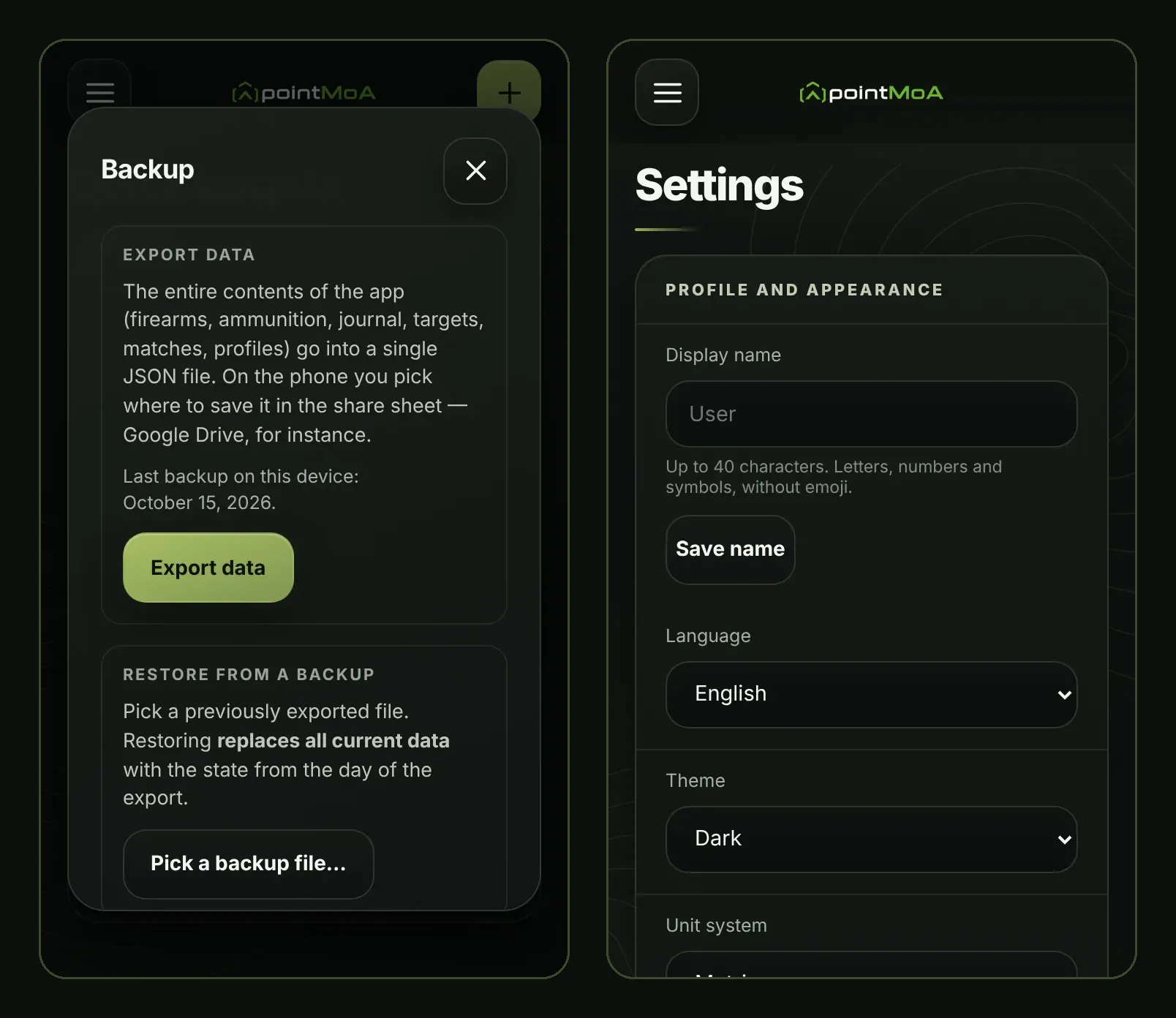
Backup exports recorded data to a file that can be restored on another device. It is a way to move your history, rather than an automatic cloud service. Some current calculator settings and the Shooting target list are local settings outside the backup. Keep an export before changing phones or uninstalling the app.
Settings also contains help, a feature guide, contact information and the privacy policy. The About module, last in the menu, has Show the feature tour: 27 slides with screenshots of every module, which the app also shows once after installation and once after the 2.509.0 update.
How to start using pointMoA
You do not need to fill in every module immediately. Four steps are enough for a first range visit:
- Add the firearm and ammunition you use in practice.
- Start a session or plan one in Calendar.
- Add a target and mark impacts to save the result with its context.
- After several visits, open Progress and compare similar groups.
If you use optics, a calculator profile and zero check can be the next step. For practice at home, explore Dry fire. If recording targets is enough to start with, do that and add more detail as it becomes useful.
pointMoA becomes most useful when measurements start to form a history. You have the setup, conditions, equipment changes and activity between visits alongside the last target.
Explore pointMoA and download the app.
Frequently asked questions
Is pointMoA only a ballistic calculator?
No. It also includes a session and competition logbook, target analysis, Armory, maintenance records, Progress, zeroing, laser training, ranges, conversions, reports and printouts.
Does the app work offline without an account?
Yes. Core calculations and recorded data work on the device. Opening the store, an external map or sending a report through a messenger depends on the service you choose.
Does pointMoA automatically detect bullet holes?
It can propose impacts from a photo. You check and accept the suggestions, and manual marking is also available. It does not promise perfect measurement of every possible target.
Can I use the app for dry-fire practice?
Yes. You need a suitable laser, a printed target and a phone camera. The laser depends on the exercise: pulses for shooting, continuous light for hold training and selected pre-zeroing methods.
Does the calculator work out to 1000 metres?
In the version covered here, advanced mode supports that range for selected long-range calibres. The limit depends on the setup and mode; not every load has a 1000 m range.
Can I move my history to another phone?
Yes, by exporting and restoring a backup. Restoring replaces data on the destination device, so keep its own backup first if it already contains records.
Are laser results mixed with live-fire results?
No. Dry fire has separate sessions, counters and statistics.
This description was verified against build 206, version 2.509.0, dated 14 October 2026. The screenshots show that build with sample data. The features described correspond to that version.